Subtitles: live translated captions for any video, call or your own voice
Subtitles are the continuous counterpart to Listening. Nothing pauses and there are no cards: a transparent window floats over whatever you’re watching and captions it live — the original words as they’re spoken, and a translation in each language you chose. Read along with your eyes while your ears stay on the real voices.
Subtitles have two sources. System captions what your Mac plays: a film, a stream, a call. Microphone captions you — for a class, an audience or a camera — and has its own section below.
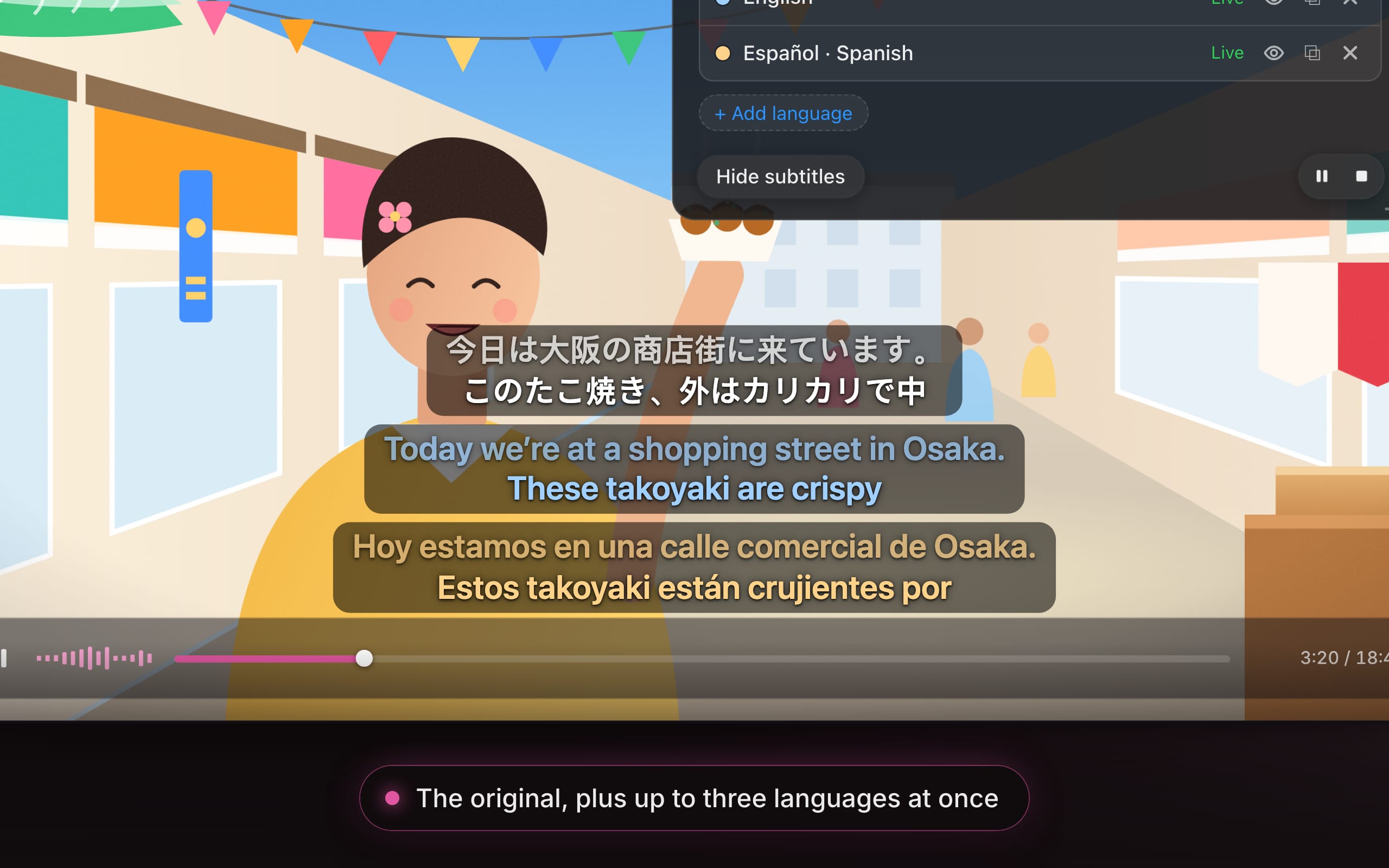
Animated demo of a Subtitles session. A Japanese food vlog plays in a video player while a transparent caption window over the lower part of the video streams three lines word by word: the original Japanese, English and Spanish. The speaker says “今日は大阪の商店街に来ています。” (“Today we’re at a shopping street in Osaka.” / “Hoy estamos en una calle comercial de Osaka.”), then “このたこ焼き、外はカリカリで中はとろとろです。” (“These takoyaki are crispy outside and gooey inside.”), then “熱いうちに食べるのが一番ですね。” (“They’re best eaten while they’re still hot.”). Finished sentences move up to a dimmed line as the next one starts. The app’s overlay lists the two translated lanes, English and Spanish, as live; it is then closed with its close button and the subtitles keep running over the video.
Animated demo of a Subtitles session. A Japanese food vlog plays in a video player while a transparent caption window over the lower part of the video streams three lines word by word: the original Japanese, English and Spanish. The speaker says “今日は大阪の商店街に来ています。” (“Today we’re at a shopping street in Osaka.” / “Hoy estamos en una calle comercial de Osaka.”), then “このたこ焼き、外はカリカリで中はとろとろです。” (“These takoyaki are crispy outside and gooey inside.”), then “熱いうちに食べるのが一番ですね。” (“They’re best eaten while they’re still hot.”). Finished sentences move up to a dimmed line as the next one starts. The app’s overlay lists the two translated lanes, English and Spanish, as live; it is then closed with its close button and the subtitles keep running over the video.
When to use it
- A film, series or stream with no subtitles in your language — or none at all.
- Live things you can’t pause: a broadcast, a lecture, a webinar, a livestream.
- Video calls and meetings. Subtitles caption any app’s audio, so the people speaking on a Zoom, Meet, Teams or FaceTime call are translated as they talk.
- Your own voice, for other people: teach, present or record in your language while the room — or the stream — reads along in theirs. See Caption your own voice.
- Reading practice at native speed: follow the Original line in the language you’re learning, and glance at the translation only when you’re lost.
Want to stop and study a sentence instead? That’s a Listening session. A Subtitles session and a Listening or Speaking session don’t run at the same time — stop one to start the other.
Start Subtitles
- In the overlay, select Subtitles.
- Under Subtitle languages, check the languages you want to read. Remove one with its ×, or add one with + Add language. You need at least one to start.
- Optional: press the options button to choose the source — System (everything your Mac plays, or a single app from the list) or Microphone (what you say, with its own microphone picker and noise reduction).
- Press Start Subtitles — it’s also in the menu-bar icon’s menu. The caption window appears immediately, showing “Connecting…” and then “Listening…” until the first words arrive.
The spoken language is detected automatically; there is nothing to set. Subtitles can translate into 13 languages, and how many you can show at once depends on your plan — see Pricing.
The caption window
- It is transparent and always on top, including over full-screen video, with no title bar or buttons until you point at it.
- Drag it anywhere. It remembers the spot. It is anchored by its bottom edge, so when a caption grows to two lines it rises instead of sliding off the screen.
- The top line, Original, is the transcript of what is being said; each language you chose gets its own line below. Prefer translations only? Turn off Show original line in Settings then Session then Subtitles then Languages.
- By default each line sits on a translucent dark pill so it stays readable over bright video. Size, width and colors are yours to change: Subtitle appearance.
Captions are for reading: the translated speech isn’t played aloud during the session, so nothing talks over your film or your meeting.
While it’s running
The overlay becomes a small control panel. The status reads “Subtitles on”, each language is listed with its state (Connecting…, Live, Reconnecting…, Paused), and the bottom bar has:
- Hide subtitles / Show subtitles — hides every caption window without stopping anything.
- Mute — “nothing is sent for translation until you unmute”. Use it for a break, an ad, or a part of the call that’s in your own language. Muted time uses none of your allowance.
- Stop — “Stop all subtitles”. The app takes a moment to finish the last sentence before it closes, so the end of the transcript isn’t lost.
Per-language controls (show/hide, pop out into its own window, end one language) are covered in Subtitles in several languages.
Subtitles for calls and meetings
- Join the call as usual.
- In the Subtitles options choose System, and pick your meeting app from the list so that only the call is captioned — not your music or notification sounds.
- Press Start Subtitles and drag the caption window under the speaker’s video.
You’ll see what the other participants say, translated live. A session has one source, so it captions either the call (System) or your own voice (Microphone), not both at once. Remember that the call’s audio is sent to the AI service for translation while Subtitles are on — make sure that’s fine for the meeting you’re in.
Caption your own voice
Subtitles can listen to you instead of your Mac. Choose Microphone as the source, speak the way you always do, and what you say appears as live captions: your own words on the Original line, and a translation under it in each language you chose. Put the caption window on the projector, on a shared screen or in a recording, and everyone reads along in their own language.
It is made for:
- Teachers — explain, give instructions or tell the story in your own words, in a class that doesn’t share one language. More in For teachers.
- Presenters — a talk, a workshop, a parents’ evening or a town-hall meeting with guests who follow better in another language.
- Creators — talk to the camera or to your stream with captions in two languages on screen, and leave with a transcript and an SRT file timed to your voice. More in For creators.
- In the overlay, select Subtitles. Under Subtitle languages, check the languages your audience reads — one on the Free plan, up to three at once on a paid plan (Pricing).
- Press the options button next to Start Subtitles (“Session options — audio source and microphone”) and switch the source from System to Microphone. If the banner “Microphone access is off” appears, press Grant… and allow it (why).
- Pick your microphone from the list: built-in, USB, Bluetooth, or a nearby iPhone. While the options are open, every microphone shows its live input level — say a few words and check that the right one moves.
- Set Noise reduction to match it: Far mic — laptop or conference microphone for a mic that hears the room, Near mic — headset or earbuds for a mic close to your mouth, such as a headset or a lapel mic. Both are explained in Choose and test your microphone.
- Press Start Subtitles and start talking. There is nothing to hold and no language to set: the language you speak is detected automatically.
- Drag the caption window to where your audience looks — the bottom of the projected screen, or the display facing the room.
To make the microphone your usual source, set Settings then Session then Subtitles then Subtitles then Listen to to Microphone.
Set it up for a room
- Make it readable from the back row. Raise Text size and Window width under Settings then Overlay then Subtitles; a live preview shows the result. See Subtitle appearance.
- A color for every language, so each reader finds their line at a glance: Per-language colors, on the same page.
- A window for every language. Pop a language out into its own window and drag it to the screen that needs it — Spanish on the projector, Vietnamese on the display by the door.
- Translations only? Your listeners can already hear the original. Turn off Show original line in Settings then Session then Subtitles then Languages to give the translations the whole window.
- Mute in the overlay’s bottom bar is your cough button — and the one for a private word with a student. Nothing is sent until you unmute, and muted time uses none of your allowance.
- Pauses are free. After about ten seconds without speech the session goes on standby and wakes with your next word; while the class works quietly, nothing is used. If you’ll be silent for longer than a quarter of an hour, see Silence, standby and auto-end.
Afterwards: your talk as a transcript
The session is saved on your Mac as a time-marked timeline with its translations and — by default — the audio. On the Dashboard’s Subtitles page you can replay any sentence, Copy transcript in any of the languages (a handout, lesson notes, a video description) or Export SRT to caption a recording of the same talk. See Review saved subtitle sessions.
Afterwards
Every session is saved on your Mac as a time-marked transcript with its translations — and, by default, the audio — so you can re-read it, replay it in either language, copy it or export it as SRT. See Review saved subtitle sessions.