Speaking: practice out loud and get corrected
Understanding is half of a language. A Speaking session is for the other half: you say a sentence into your microphone, and get the same card a Listening session gives you — this time about your sentence. Your voice matters; this is where you use it.
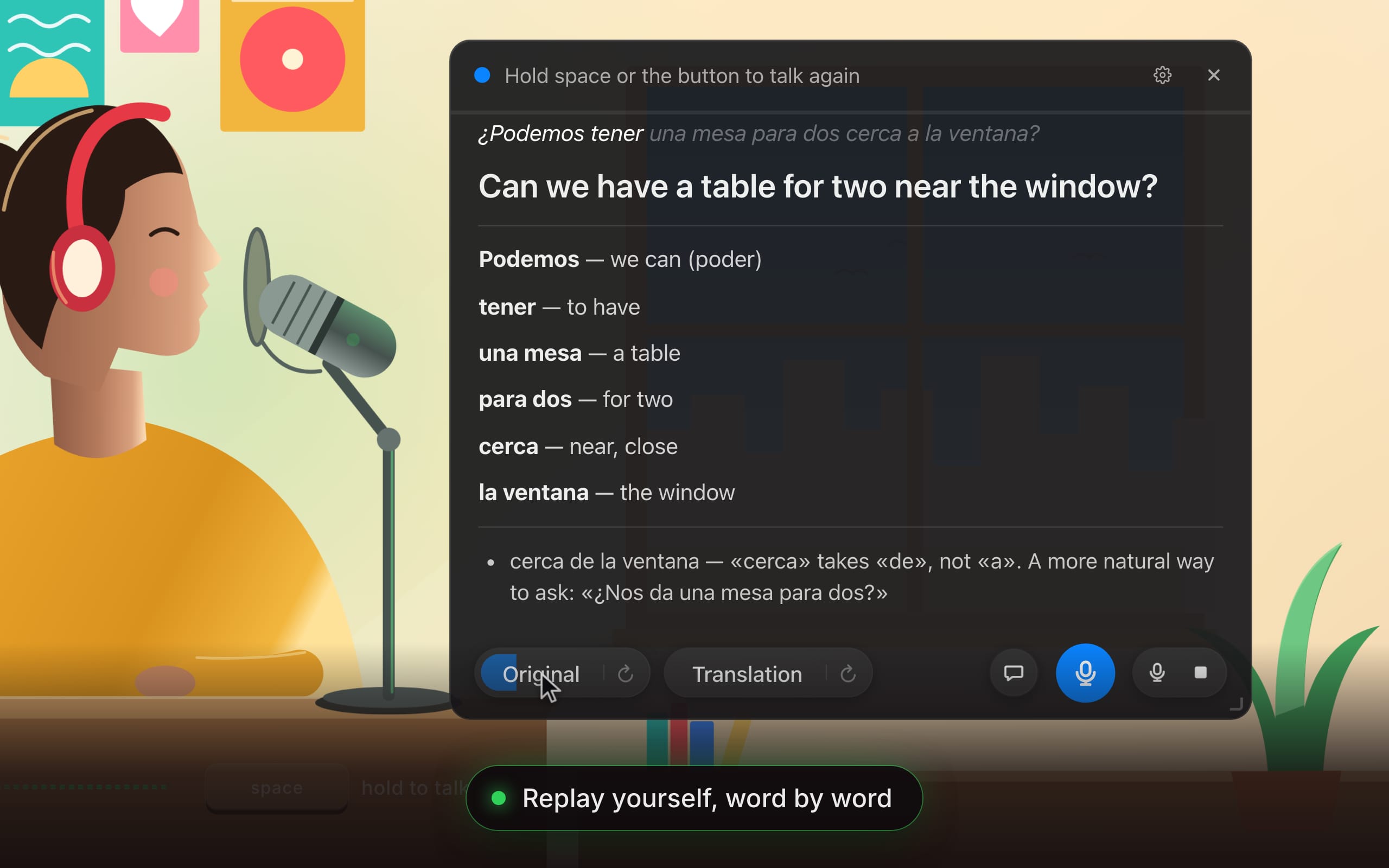
Animated demo of a Speaking session in push-to-talk mode: an English speaker practicing Spanish — drawn as a woman at her desk speaking into a microphone, next to the app. While the round microphone button is held, a level meter follows her voice and the learner’s Spanish sentence is written out as it was heard: “¿Podemos tener una mesa para dos cerca a la ventana?” On release the app speaks and shows what that meant in English — “Can we have a table for two near the window?” — so the learner can check it came across. The card then lists every word they used (Podemos, tener, una mesa, para dos, cerca, la ventana) and gives one correction: “cerca de la ventana” — “cerca” takes “de”, not “a” — with a more natural way to ask, “¿Nos da una mesa para dos?” The learner replays their own sentence with a word-by-word highlight, then asks in the chat, “Why «de» and not «a»?”, and gets a short explanation.
Animated demo of a Speaking session in push-to-talk mode: an English speaker practicing Spanish — drawn as a woman at her desk speaking into a microphone, next to the app. While the round microphone button is held, a level meter follows her voice and the learner’s Spanish sentence is written out as it was heard: “¿Podemos tener una mesa para dos cerca a la ventana?” On release the app speaks and shows what that meant in English — “Can we have a table for two near the window?” — so the learner can check it came across. The card then lists every word they used (Podemos, tener, una mesa, para dos, cerca, la ventana) and gives one correction: “cerca de la ventana” — “cerca” takes “de”, not “a” — with a more natural way to ask, “¿Nos da una mesa para dos?” The learner replays their own sentence with a word-by-word highlight, then asks in the chat, “Why «de» and not «a»?”, and gets a short explanation.
What you get back
Say a sentence in the language you are practicing. RainbowSay shows:
- what it heard you say, written out — a quick check on whether you were understood,
- the translation into your own language, spoken aloud, so you know whether it means what you intended,
- the vocabulary of the words you used, and one note: the most important mistake in what you said, with the corrected phrase — or, when there is nothing to fix, the pattern you used best. Mistakes are expected here; the card points out one at a time.
Everything else works as in Listening: replay your own voice next to the translation, ask about the sentence in the chat, and find it all later in your study history.
It doesn’t have to be a solo exercise. On a projector, a sentence said by a teacher or a student becomes the board work — see For teachers.
Start a session
- In the overlay, select Speaking. The first time, press Grant… to allow Microphone access (why).
- Press the options button next to Start Speaking and check the languages: Input language is the one you’ll speak, Output language is the one you want it translated into.
- Press Start Speaking. The status line reads “Hold space or the button to talk”.
- Hold Space, say your sentence, and release. “Listening… release to translate” turns into your card.
Two ways to talk
Choose under Settings then Session then Speaking then Microphone then Input mode, or per session in the overlay’s options under Input.
Push-to-talk (the default)
“Push-to-talk — hold to speak, release to translate.” Nothing is sent unless you are holding:
- Hold Space — from any app — or hold the round microphone button in the overlay’s bottom bar. Release to translate.
- Can’t hold a button? A short tap on the microphone button latches it: “Recording — tap the button or press space to stop”. (Taps of the spacebar never latch, so a stray keypress can’t leave the microphone open.)
- A sliver of audio from just before you pressed is included, so a word you started a beat early isn’t clipped. A press that’s too short to contain speech is simply ignored, and a single take ends by itself after 60 seconds.
Push-to-talk is the right mode for noisy rooms, shared offices and whenever you want to think before you speak.
Auto
“Auto — detects when your sentence ends.” Just talk; the app finds the end of each sentence the way a Listening session does. The status reads “Listening — say a sentence”, then “Hearing you…”.
- With Listen again automatically on (the default), the microphone re-arms as soon as the spoken translation has finished, so you can keep a rhythm going: speak, listen, speak. Turn it off to press Continue before each new sentence.
- In this mode Space means “translate now”, or “continue” when a card is showing.
- The sentence-detection settings — detection mode, eagerness, length limit — apply here exactly as described in Tune sentence detection, with their own values under Settings then Session then Speaking.
Mute, and what happens when you go quiet
- The mute button in the bottom bar — “Mute the microphone — nothing is sent until you unmute” — is there for a cough, a colleague or a phone call. The menu-bar icon offers Mute Microphone too.
- In Auto mode, a long silence puts the session on standby (“Paused — waiting for your voice”) and it wakes when you speak. In push-to-talk, waiting for a press is the normal state; pressing again picks up wherever you left off.
Why it doesn’t translate itself
A microphone hears your speakers. Without care, the app’s own spoken translation would be picked up as your “next sentence” — and translated again, forever. RainbowSay prevents that for you: the microphone is closed while the app is speaking or replaying a clip, and for a brief moment afterwards while the sound dies away in the room. You don’t need headphones to practice, though a headset does give the cleanest result.
Choose the right microphone
Pick a device and a Noise reduction setting that matches it (far mic for a laptop, near mic for a headset). The picker shows live input levels so you can see that you’re being heard. Details in Choose and test your microphone.
Next
Choose and test your microphone, then try the practice routines.